
The daily attendance sheet
See who is in today, mark present, half day, absent or leave, enter in and out times by hand, and add a fine or overtime.
Who can do this Admins who can mark attendance
Go to Time & attendance → Attendance. The sheet opens on today. Use the arrows or the date box to move to another day.
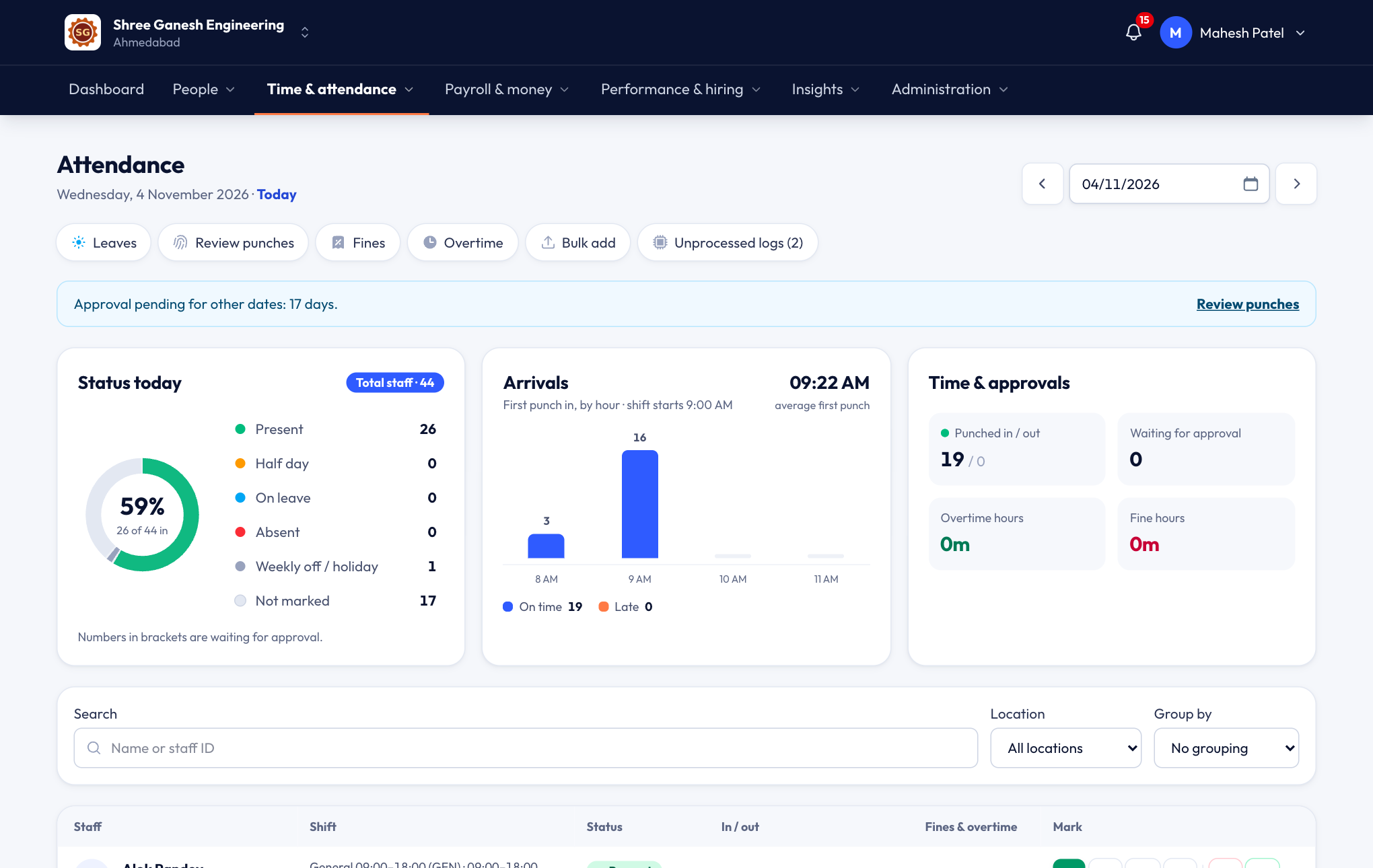
At a glance
The top of the sheet sums up the day:
- Status today — present, half day, on leave, absent, weekly off / holiday and not marked. Numbers in brackets are waiting for approval.
- Arrivals — first punch-in by hour, with the shift start marked, so you can see late arrivals at a glance.
- Time & approvals — punched in / out, days waiting for approval, overtime hours and fine hours.
- Attendance tasks — links to Review punches, Fines and Overtime when something is waiting. See Review fines and overtime.
Find people
Search by name or staff ID, filter by location, and group by department, shift or location. Each row shows the person's shift, their in and out times with a bar of time worked, any fines or overtime, and their status.
Mark attendance
Use the buttons in the Mark column of a person's row (hover over a button to see its name):
| Button | What it does |
|---|---|
| P — Present | Full day, paid. You may be asked for in and out times (below). |
| HD — Half day | Choose First half (S1) or Second half (S2). |
| A — Absent | Unpaid day (loss of pay). |
| L — Mark leave | Opens the leave form with this person's leave types and balances. See Leave. |
| F / OT — Add fine / Add overtime | Adds an entry for this day (below). |
| Clear | Removes your mark, so the person's punches decide the day again. |
A day you mark shows marked by admin.
Enter in and out times by hand
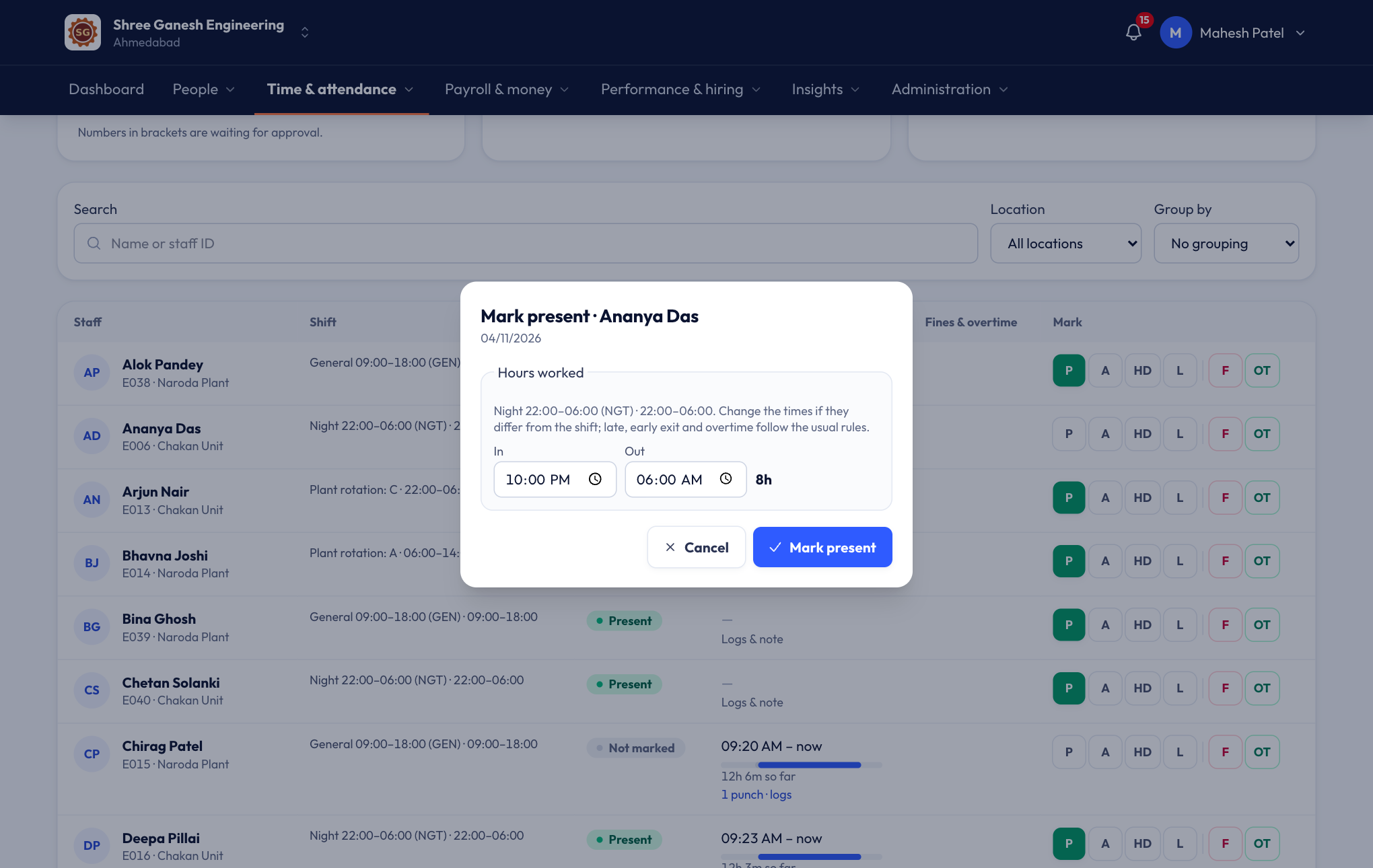
When someone forgot to punch, mark them Present (or Half day) and type their in and out times — for example from the gate register.
- You're asked for times when the person's attendance policy tracks in and out times, and they're required for people paid by the hour.
- If the person has more than one shift that day, there's a pair of times for each.
- The times you enter stand in for that day's punches. Hours worked, late marks, early exits and overtime are then worked out with your normal rules, and payroll uses them. The original punches are kept, and Clear brings them back.
Add a fine or overtime
Choose Add fine or Add overtime, then enter the minutes and how to price it:
- Fixed amount — a rupee amount, for example ₹50.
- Salary multiplier — priced from the person's pay: minutes × hourly rate × the multiplier (for example 1.5 for overtime).
- Half day / Full day (fines only) — half or all of the person's daily rate.
Entries you add still go through review like automatic ones, unless you approve them there.
Locked days
Once payroll for a period is locked, its days show Locked by payroll and can't be changed. To correct one, unlock the month first in Payroll. See Running payroll.
Other tools on this page
- Bulk add — upload attendance for many people and days from an Excel sheet.
- Unprocessed logs — punches from a biometric machine that didn't match anyone yet, for example a new card code.