
Review punches, fines and overtime
Approve, pardon or reject late fines and overtime before payroll, see the amount of each, and approve punches made outside the work site.
Who can do this Admins who can approve attendance
pagar karo works out late-arrival and early-exit fines and overtime from each day's times and your automation rules. Before they reach payroll, someone decides on each one. Find the three review lists under Time & attendance → Attendance, or from Things to do on the dashboard.
Fines and overtime
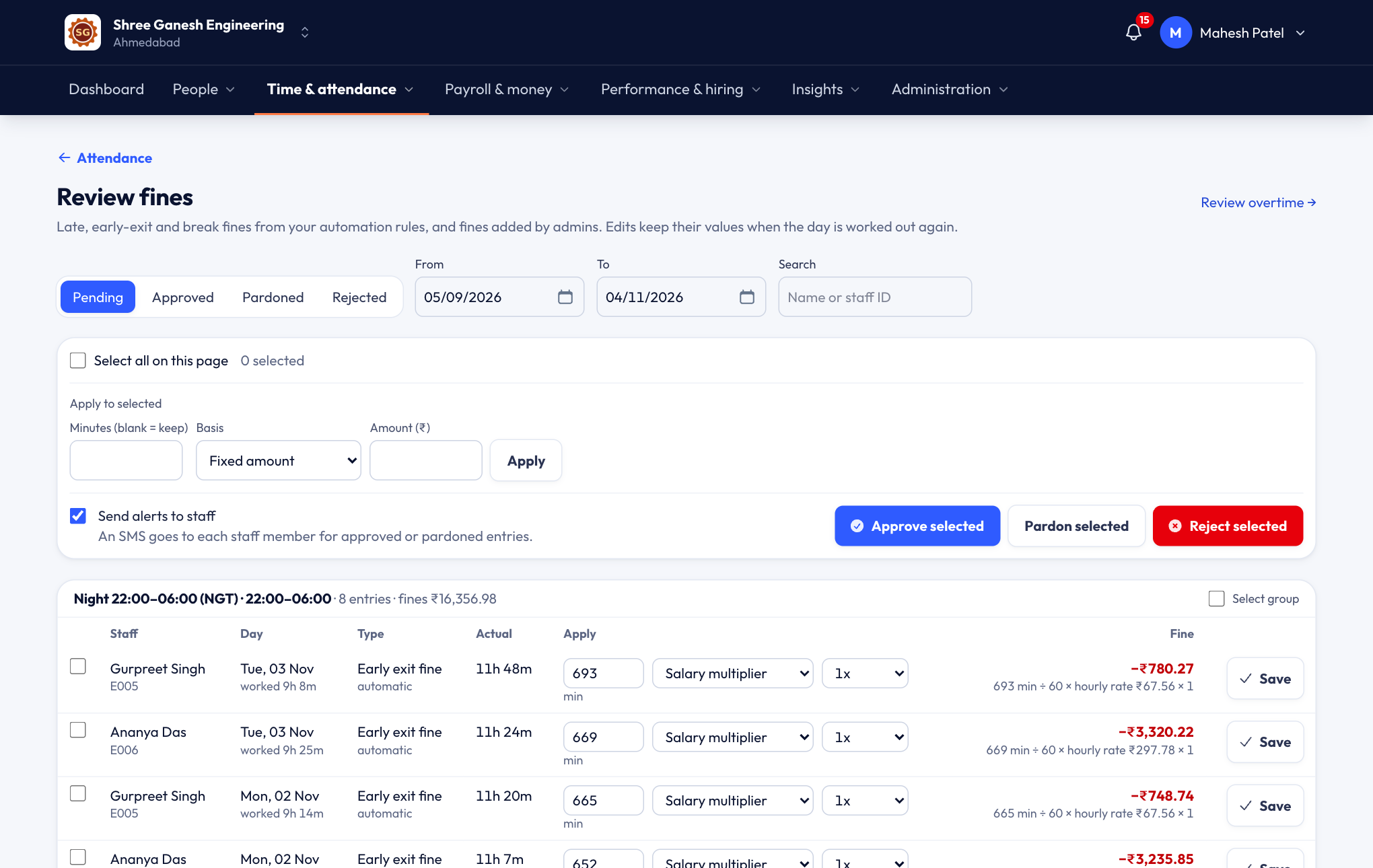
Open Fines or Overtime. Each row is one entry: the person, the day, the type (for example late entry or early exit), the actual minutes, and the amount.
What the amount means
The Fine or Pay column shows the rupee amount the entry will deduct or pay, worked out from the rule:
- a fixed amount shows as it is (₹50);
- a salary multiplier is minutes ÷ 60 × the person's hourly rate × the multiplier;
- a half day or full day is half or all of their daily rate.
The daily and hourly rates come from the person's salary and your payroll settings (Payroll → Payroll settings → Price fines and overtime on). Group totals show the sum for each group. Amounts priced from salary are only shown to admins who can see salaries.
Decide
- Filter by status (Pending, Approved, Pardoned, Rejected) and dates. Search by name or staff ID.
- Tick the entries, or Select all on this page, or Select group.
- Choose:
- Approve selected — the fine is deducted, or the overtime paid, in payroll.
- Pardon selected — the entry stays on record but costs nothing. Use it for a genuine reason, such as a bus strike.
- Reject selected — the entry is dropped: not paid and not deducted.
To change the minutes or the pricing first, use Apply to selected — leave minutes blank to keep them. Your edits are kept even if the day is worked out again.
Tick Send alerts to staff to send an SMS to each person for approved or pardoned entries (this needs alerts switched on in Settings → Attendance & alerts).
Punches to approve
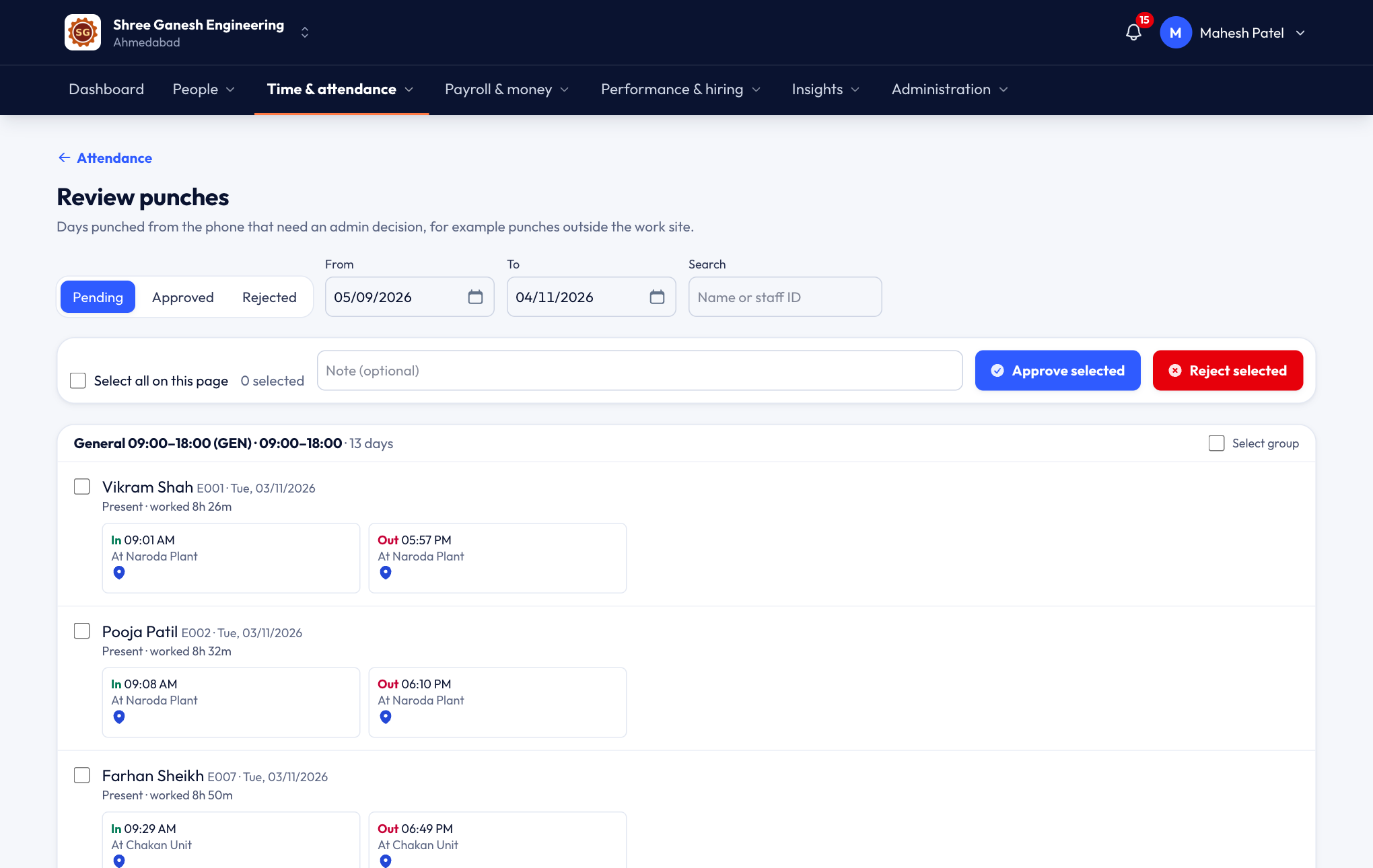
Review punches lists days punched from the phone that need a decision — usually because the punch was outside the work site or your policy asks for approval of every self-punch. Each row shows the selfie, the in and out times, the distance from the site and a map. If the phone reported a mock location, you'll see a warning.
Approve or reject the selected days, with an optional note. A rejected day counts as not marked until an admin marks it.
Before you process payroll
Pending entries aren't paid or deducted. The payroll overview warns you under Action required while anything is still pending for the month — clear the lists first. See Running payroll.