
Running payroll
Process salaries for the month in five steps — attendance, review, process, lock and pay — with inputs, overrides, checks and payment.
Who can do this Owner or admins with payroll access
Go to Payroll & money → Payroll. The page opens on the current payroll month. Use the arrows to move between months.
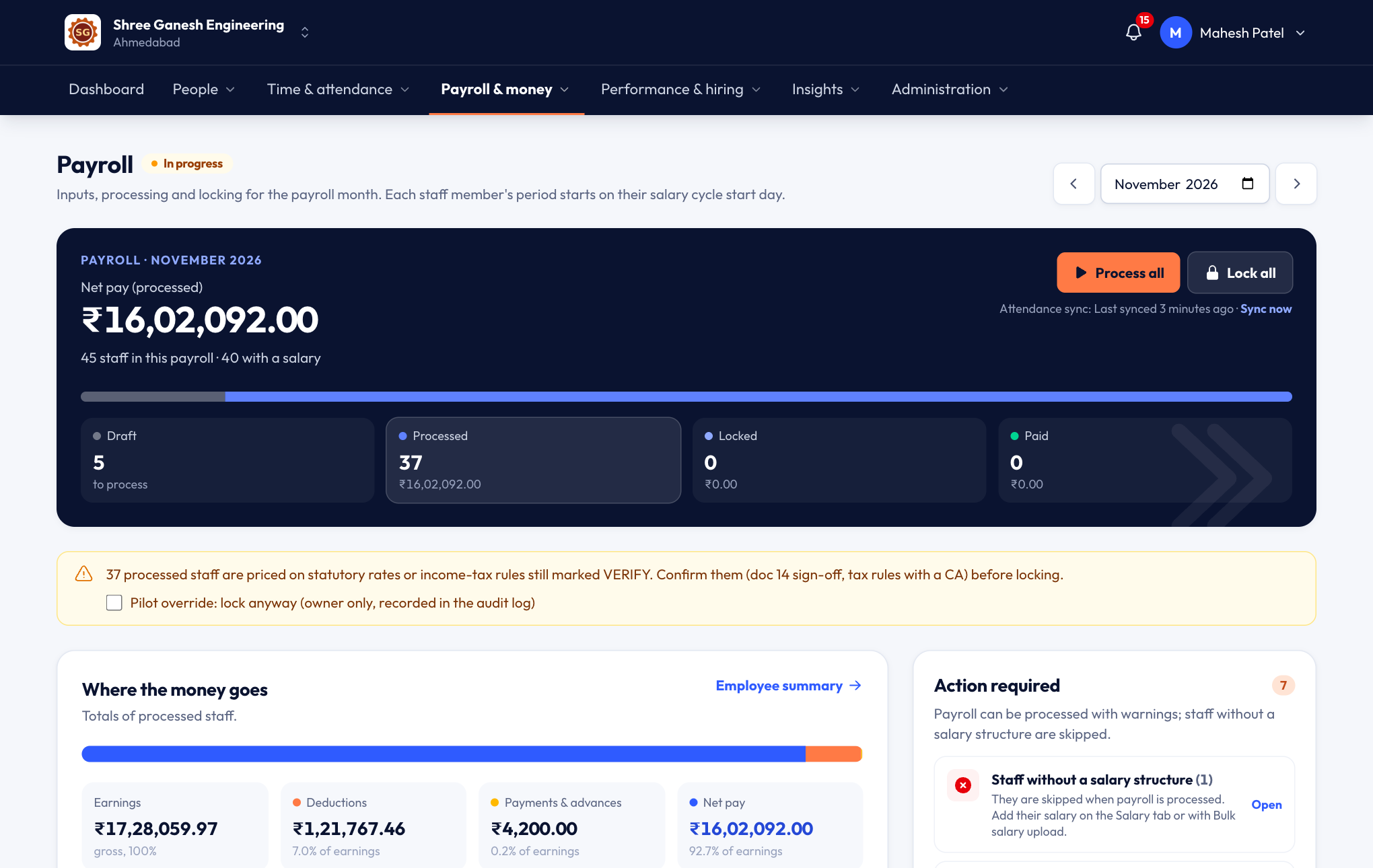
Every month goes through five steps, shown at the top: Attendance → Review → Process → Lock → Pay.
Attendance
Make sure the month's attendance is complete. pagar karo syncs attendance in the background: it works out any days not yet evaluated and prices fines and overtime. Last synced shows when it last ran; press Sync now to run it again.
Under Action required, pagar karo lists anything that needs you first: punches still to approve, fines or overtime pending, staff without a salary, and so on.
Review the inputs
Open Payroll inputs to check what goes into each person's pay:
Input page What's in it Attendance & LOP Payable days and loss of pay from attendance, with any overrides. Overtime & fines Approved overtime and fines, priced from salary. Variable components One-off earnings and deductions: bonus, incentive, canteen deduction, leave encashment. Salary details override Final earnings and deductions for exceptional cases. To change something for one person — for example pay 24 days because they joined late — add an override with a reason. Every override is recorded. Variable pay and payable days can also be uploaded from Excel.
Process
Press Process all. pagar karo calculates each person's pay: earnings for the days worked, overtime, variable pay, PF, ESI, Professional Tax, LWF, income tax (TDS), fines, loan EMIs and advances. Staff without a salary are skipped.
Open Employee summary to see each person's gross, deductions and net pay. View calculation shows every step of the working, line by line.
Changed something after processing? Process again — only unlocked staff are recalculated.
Lock
When the figures are right, press Lock all. Attendance and inputs for the month become read-only, and payslips are ready for staff.
If you find a mistake later, unlock the month (with a reason), fix it and lock again. If any statutory rate is still marked VERIFY, confirm it with your accountant before locking.
Pay
Record how salaries were paid:
- Pay offline — bank transfer, cash or cheque: record the payments for everyone or for selected staff.
- Online payouts — pay from pagar karo once your business is verified (set up under Settings → Online payouts).
- Bank salary file — download a file for your bank's bulk upload (Settings → Bank salary files).
When everyone is paid, the month shows Paid.
Where the money goes
After processing, the overview shows the month's totals — Net pay, Deductions & tax, and Payments & advances — and how many staff are in each state: draft, processed, locked and paid.
Payroll exceptions
- Salary hold — calculated as usual, but not paid until you release it.
- Salary stop — the person is left out of payroll from a month until you resume it.
- Arrears — when a salary revision is back-dated into a locked month, the difference waits here for you to include, defer or write off.
- Off-cycle payroll — a separate run for a festival bonus or a correction, with its own payslips.
Accounts and compliance
- Tally export — download the month's payroll journal with your own ledger names. Map ledgers under Settings → Accounting & calendar.
- Compliance — PF, ESI, PT, LWF and TDS due for each month from locked payroll, with due dates and a place to record each challan. Find it under Payroll & money → Compliance.
Payroll settings
On the overview, Payroll settings decide how fines, overtime and leave encashment are priced (the daily rate is the chosen salary ÷ basis days; the hourly rate is the daily rate ÷ shift hours) and whether income tax is worked out or entered by hand.