
Adding staff
Add staff one by one or upload many from Excel, choose how each person is paid, and invite them to the staff app.
Who can do this Owner, business admin, or an admin whose role can add staff
Add one person
Choose how they're paid
Go to People → Staff and press Add staff. Pick the type that matches how this person is paid:
Type Best for Pay Salary structure PF, ESI… Regular Full-time payroll Fixed monthly Full Yes Contractor Temporary or contract work Monthly, daily or hourly Reduced No Work basis Piece-rate or field work Per completed work None No Press Continue.
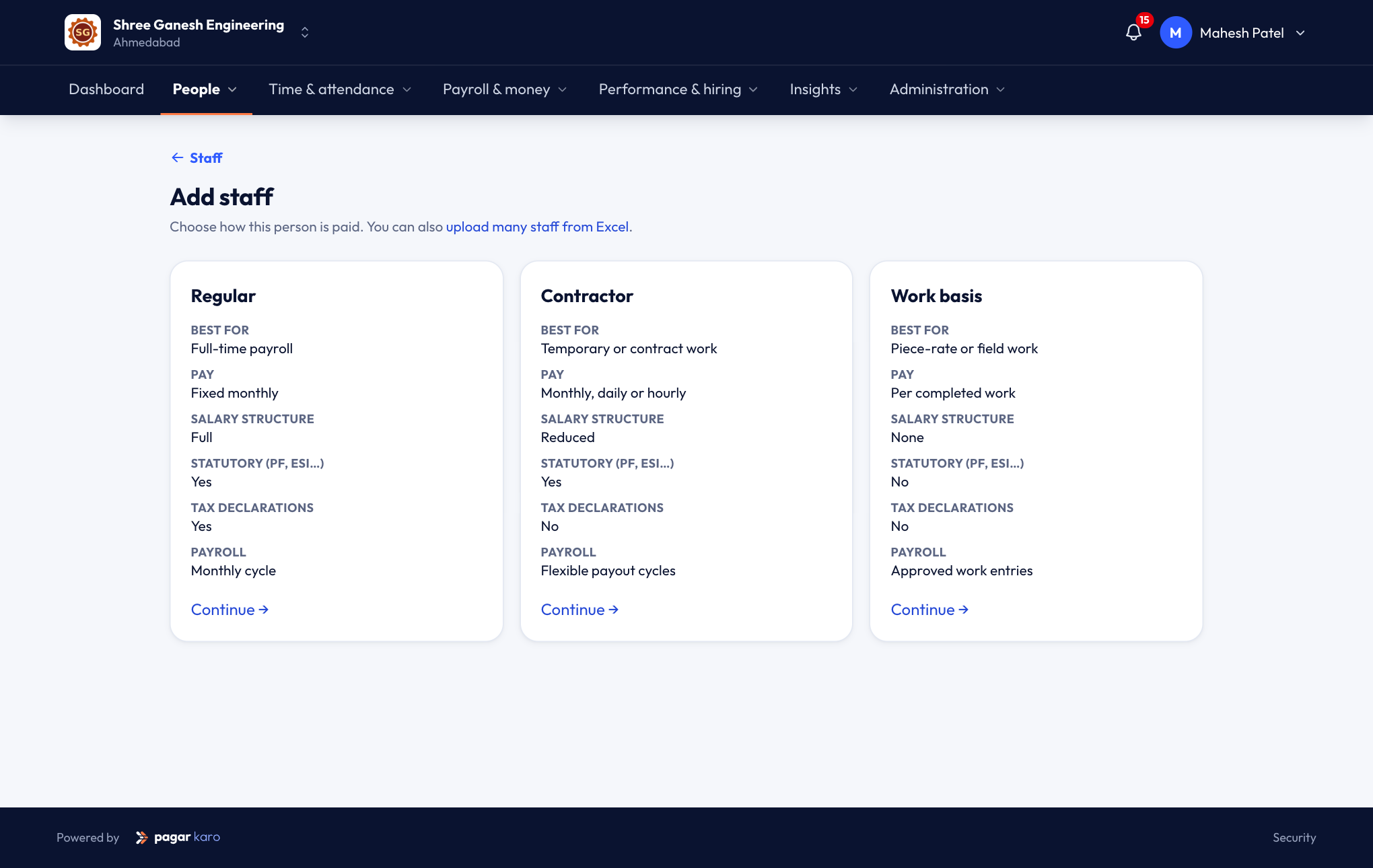
Choosing the staff type Fill in the profile
Only the fields marked * are required. The most useful ones:
- Name and Staff ID — the ID is suggested from your last one (for example E046).
- Mobile number — staff sign in to the staff app with it.
- Designation, Work location and Reporting manager.
- Business functions — for example their department and shift group. These drive the department breakdowns on the dashboard and which policies apply.
- Date of joining, and a Probation period if you use one.
The rest — personal details, address, PF and ESI numbers, PAN, Aadhaar and bank account — can be filled in now or later.
Save
Nothing is saved until you press Save. The person gets your business's default policies for attendance, shift, weekly off, holidays and leave, unless a policy's rule picks them (for example "night shift for Production at Chakan").
Give them a salary
Open the person and go to Salary → Salary structure to set their CTC or monthly pay. Payroll skips staff without a salary, and the dashboard lists them under Staff without a salary.
Add many staff from Excel
- Go to People → Staff → Add staff and choose upload many staff from Excel.
- Download the template. It lists every column with an example.
- Fill in one row per person and upload the file.
- pagar karo checks every row first. If something is wrong — a missing mobile number, a date in the wrong format — you get an error file with the problem next to each row. Fix those rows and upload again.
- When the check passes, confirm to add everyone.
You can upload salaries the same way from People → Staff → Bulk salary upload.
Invite staff to the app
Staff use the staff app to punch in and out with a selfie, apply for leave, see their attendance and download payslips.
- One person: open their profile and press Invite to staff app. They get an SMS to sign in with their mobile number.
- Everyone at once: the last step of the setup guide offers to invite all staff by SMS.
The profile shows Staff app enabled once they've been invited, or Not invited to the staff app.
Next
- The staff profile — everything about one person in one place.
- The daily attendance sheet — mark today's attendance.