
The staff profile
Everything about one person in one place — details, attendance and leave, salary and payslips, loans, documents, assets and a full change history.
Who can do this Admins, for the staff their role covers
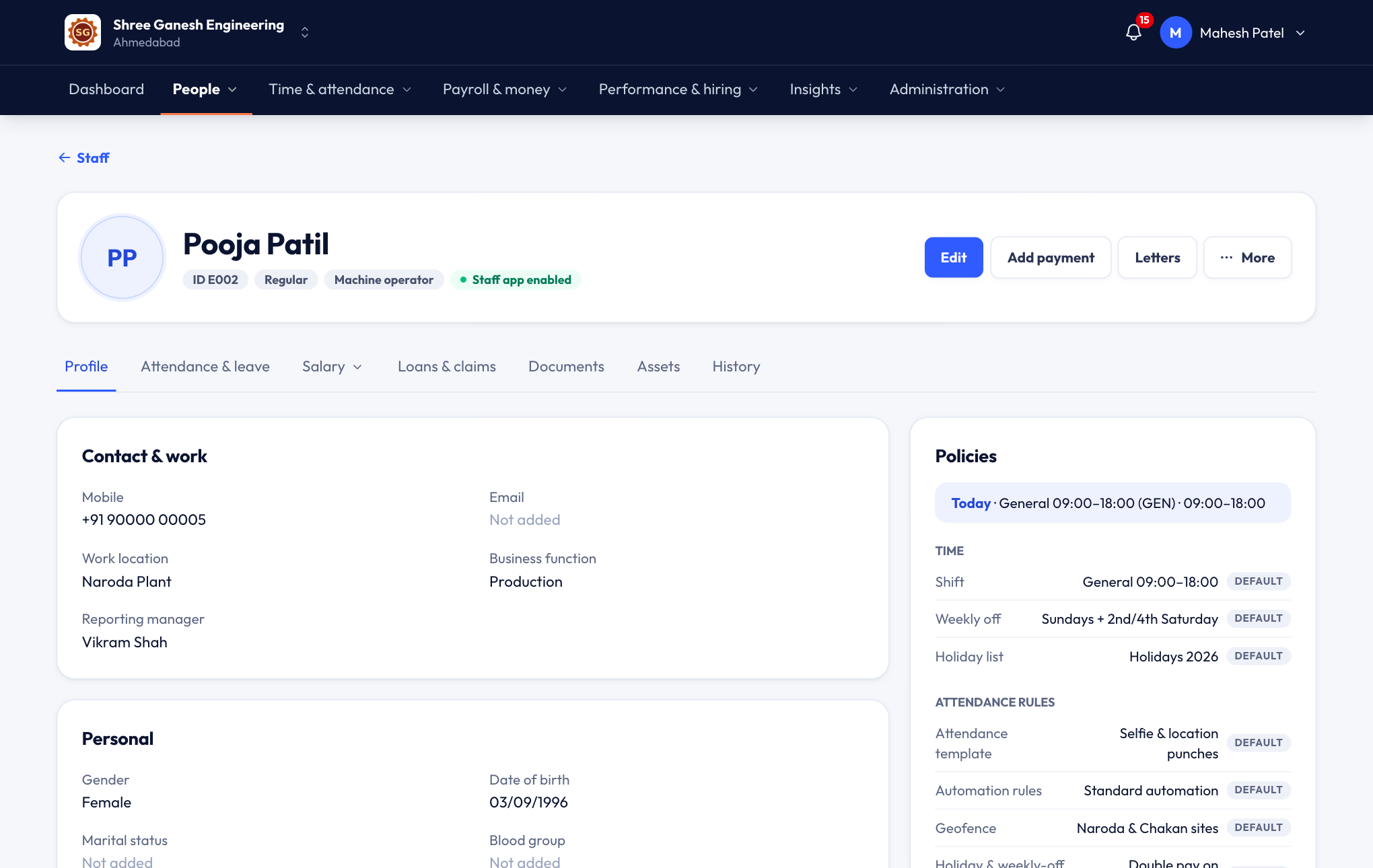
Open People → Staff and click a name. The profile has a summary at the top and tabs below.
The summary
At the top you see the person's name, staff ID, designation and whether they use the staff app. The buttons:
- Edit — change any detail. Everything is edited in one form now, so there are no separate edit links around the profile.
- Add payment — record a salary payment or an advance.
- Letters — issue an offer, appointment or other letter from your templates.
- More — invite or re-invite to the staff app, start an exit and full-and-final settlement, deactivate, or delete.
When a probation period has ended, a banner asks you to Review: confirm, extend or end it.
The tabs
| Tab | What's there |
|---|---|
| Profile | Contact and work details, business functions, reporting manager, personal details, employment, statutory and bank details. |
| Attendance & leave | A month calendar of their attendance, and their leave balances and requests. |
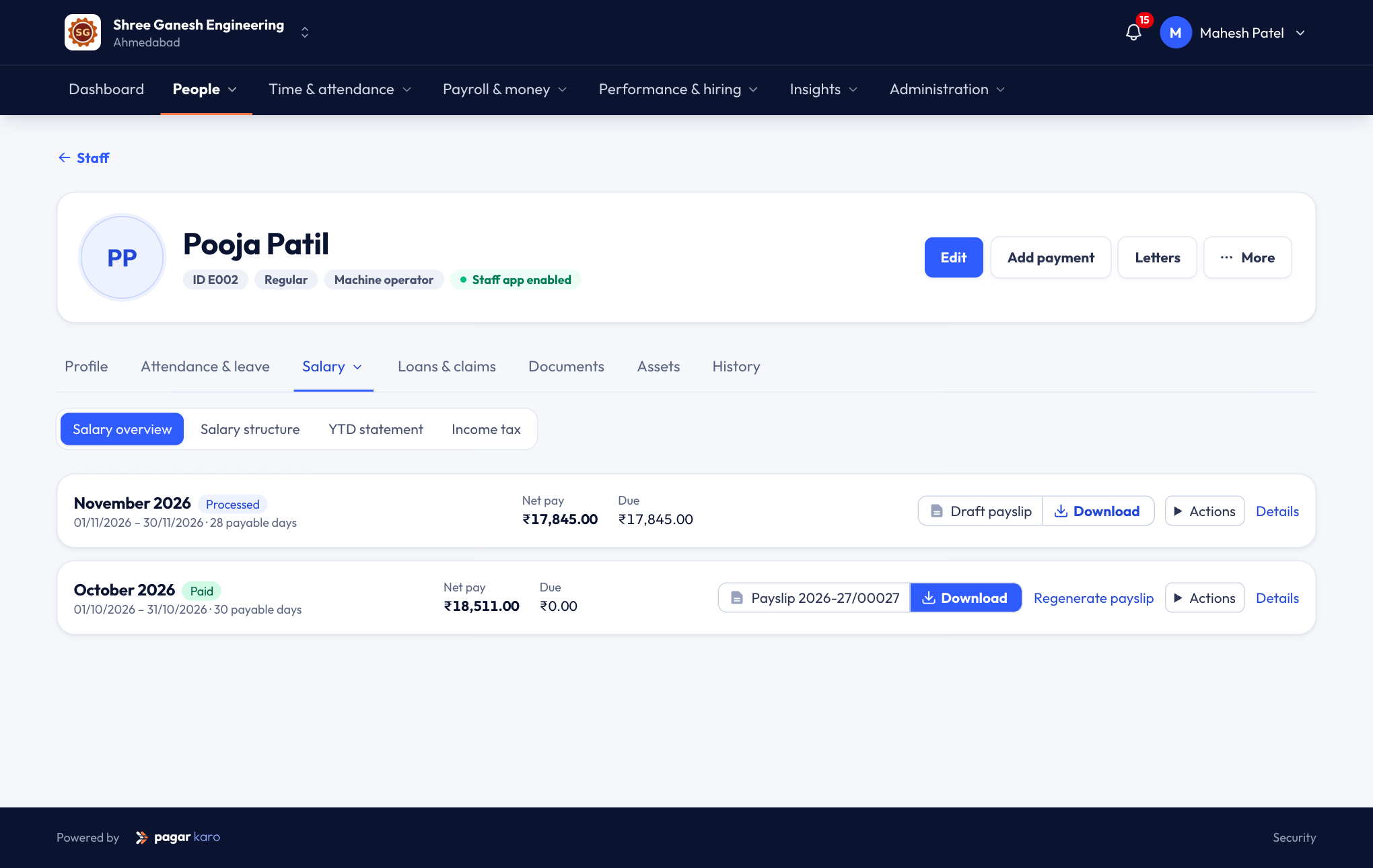
| Salary | Salary overview with payslips by month, the Salary structure and its history, a YTD statement and Income tax. |
| Loans & claims | Loans and advances with their repayments, and expense claims. |
| Documents | ID proofs, certificates and other files, with expiry dates. |
| Assets | Laptops, phones, uniforms or tools given to them. |
| History | Every change to this person, newest first. |
Mark attendance from the profile
On Attendance & leave → Attendance, click a day to mark it — the same buttons as on the daily sheet: Present, Half day, Absent, Mark leave, Add fine and Add overtime. If the person's policy tracks in and out times, you'll be asked for them when you mark Present.
Payslips
Go to Salary → Salary overview to see each month's pay. For a month that is locked, press the download button for the payslip PDF. For the current month, you can download a draft payslip that shows what they'd get if payroll ran today. See Payslips.
The history tab
History shows who changed what and when: a salary revision, a new reporting manager, an attendance mark, a document upload. Filter by period (today, yesterday, last 7 days, this month, and so on) and by type of change.
Sensitive values such as bank account numbers are masked in the history.