
Signing in and switching business
Sign in to pagar karo with your email or mobile number, reset a forgotten password, and switch between the businesses you manage.
Who can do this Owners and admins (staff use the staff app)
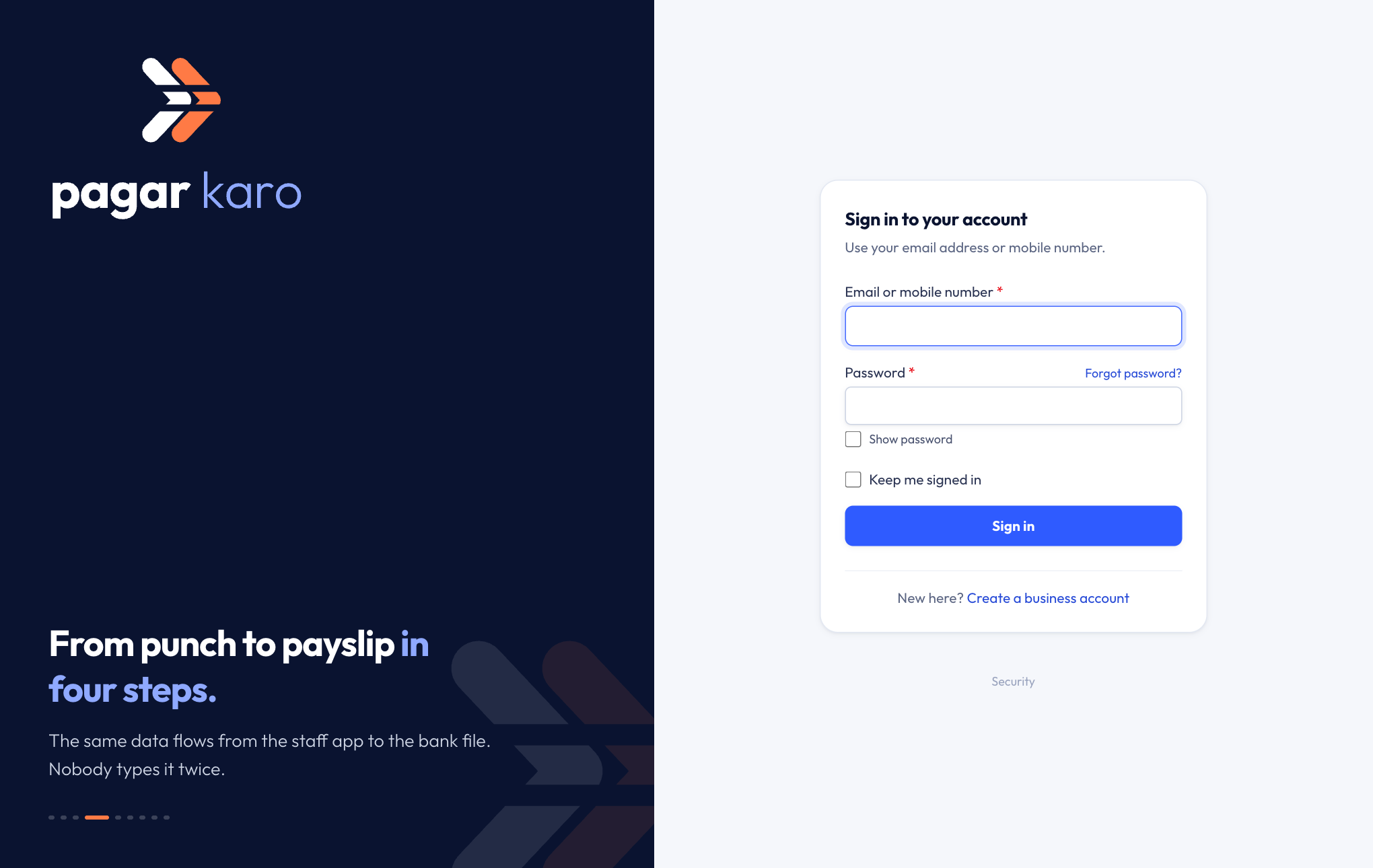
Sign in
- Open app.pagarkaro.com.
- Enter your email address or mobile number and your password.
- Tick Keep me signed in on your own computer, so you don't have to sign in every day.
- Press Sign in.
Forgot your password?
Press Forgot password? on the sign-in page and enter your email. We'll send a link to choose a new password. The link works once and expires after a short time, so use it soon.
New to pagar karo?
Press Create a business account on the sign-in page. You'll set your business up with the setup guide right after.
Switch between businesses
If you run more than one business — say a factory and a shop — each one has its own staff, policies and payroll. One login gives you all of them.
- Click your business name in the top-left corner.
- Pick the business you want. You can also search by name, or Add business.

Everything you see after that — the dashboard, staff, attendance, payroll — belongs to that business only. The name under the business shows which city it's in and your role there.
Sign out
Click your name in the top-right corner and choose Sign out. On a shared computer, always sign out when you're done.