
Payslips
Where staff and admins find payslips, how to download a PDF or a draft payslip for the current month, and how to change the payslip layout.
Who can do this Admins with payroll access; staff see their own in the app
A payslip is ready as soon as a person's payroll month is locked. See Running payroll.
Download a payslip
- Open the person: People → Staff, then their name.
- Go to Salary → Salary overview.
- Press the download button next to the month for the PDF.
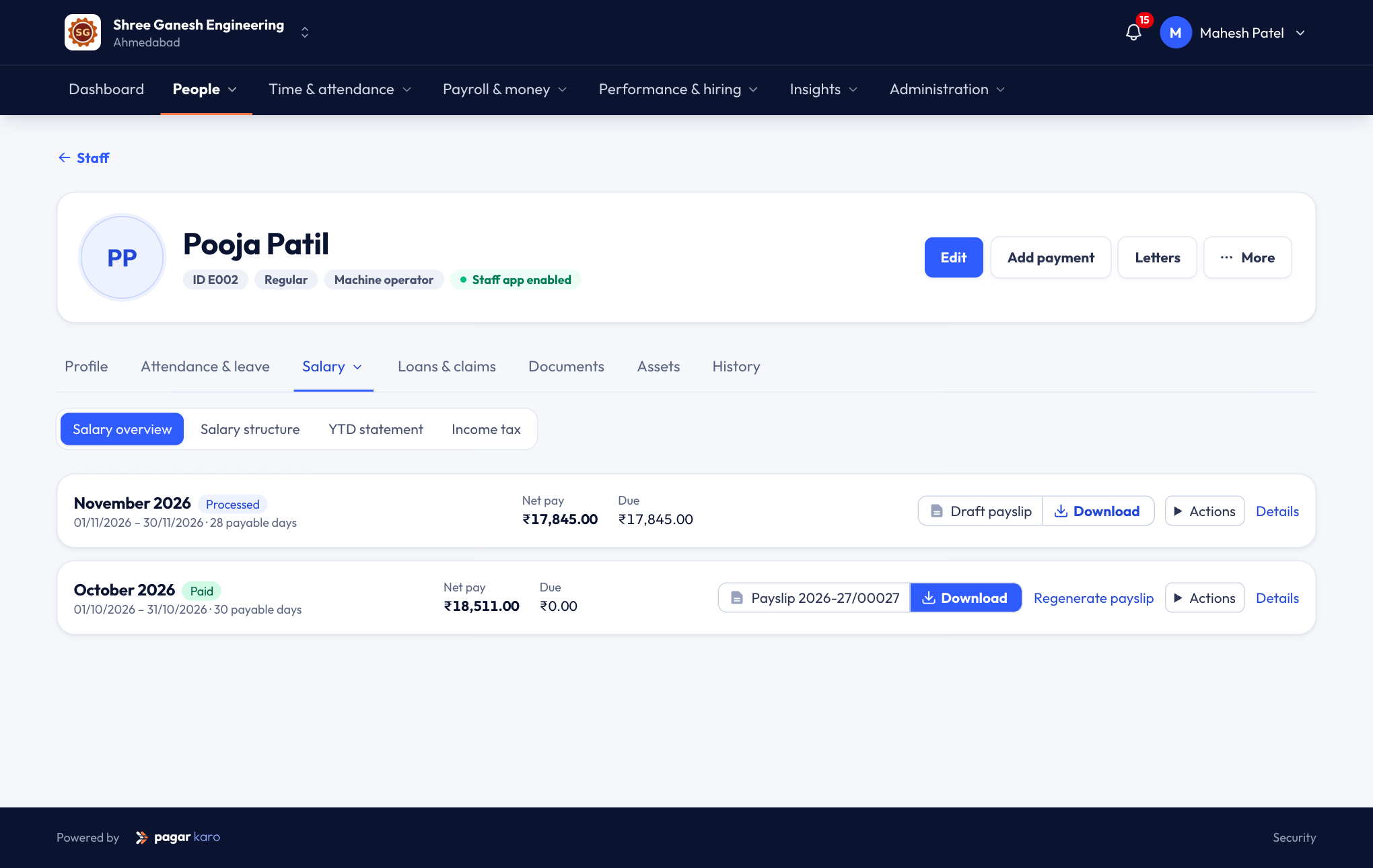
Draft payslip for the current month
Before payroll is locked, you can download a draft payslip from the same place. It shows what the person would get if payroll ran today, and is clearly marked as a draft. It's handy when someone asks "how much will I get this month?".
Staff see their payslips in the app
Staff open Payslips in the staff app to see and download every locked month. They only ever see their own.
What's on a payslip
- Your business name, logo and address.
- The person's name, staff ID, designation, department, PAN and UAN (masked where needed), and bank account (last four digits).
- Payable days and loss-of-pay days.
- Earnings, deductions and net pay, in figures and in words.
- Employer contributions (PF, ESI) if you choose to show them, and a year-to-date income-tax summary.
Change the layout
Payslip layouts are a policy: Administration → Policies → Payslip. Choose what to show, preview it with a sample, and save. Like every policy, a change applies from the date you choose. See Attendance policies.
Off-cycle payslips
A festival bonus or correction run makes its own payslip, titled Off-cycle payslip with the run's name, alongside the monthly one.