
The dashboard
What the dashboard shows — payroll progress, things to do, today's attendance and breakdowns by department and shift — and how to choose your cards.
Who can do this Owners and admins
The dashboard is the first page after you sign in. It answers three questions: what needs me today, who is at work, and where is this month's payroll.
What's on it
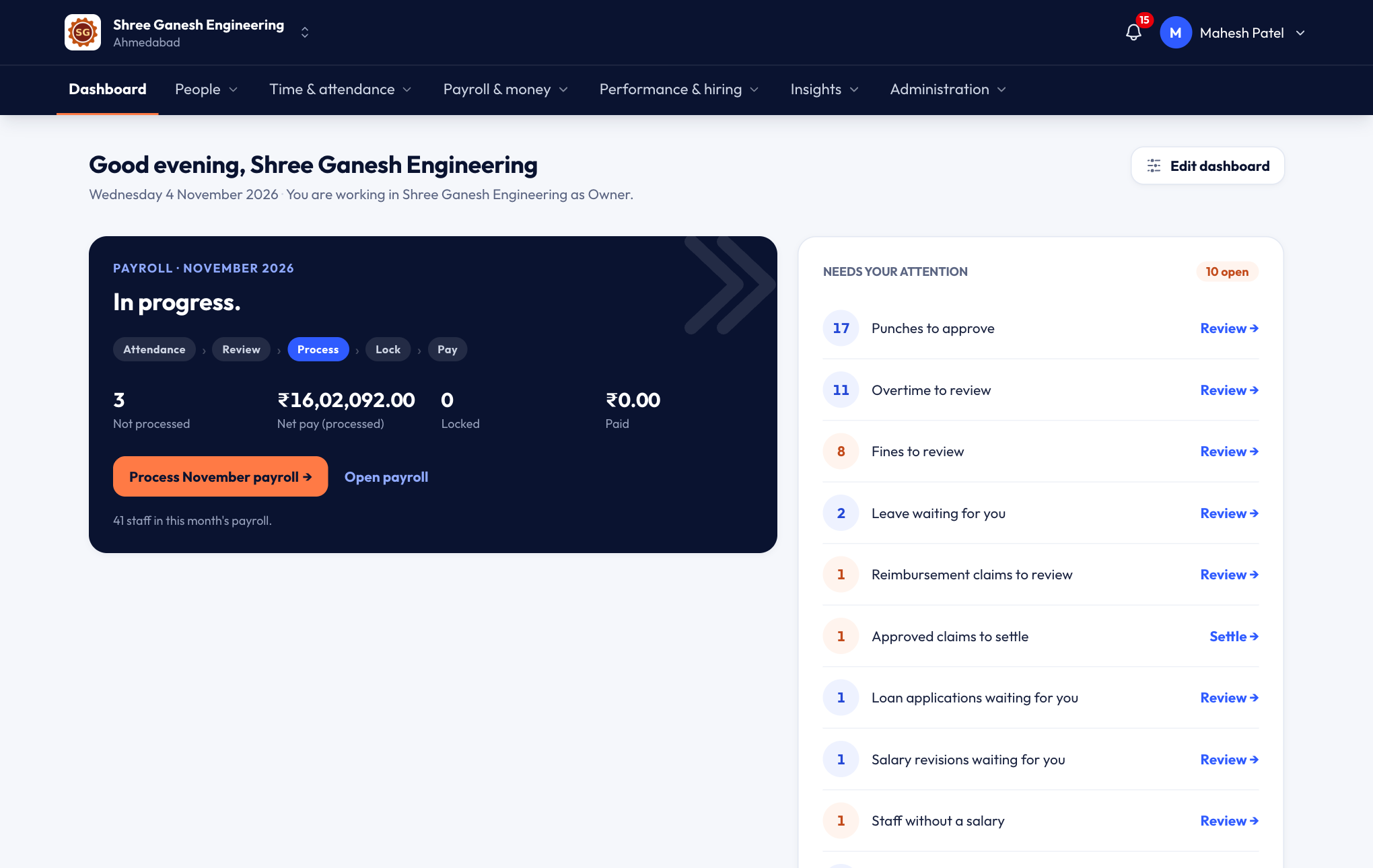
Payroll for the month. A strip shows the five payroll steps — Attendance, Review, Process, Lock, Pay — with the current one highlighted. You also see how many staff are not processed, the net pay processed so far, and what has been locked and paid. Press Open payroll to continue. See Running payroll.
Things to do. Everything waiting for you, with a Review link each: punches to approve, overtime and fines to review, leave and loan applications, expense claims, salary revisions, staff without a salary and probation reviews. When everything is clear, it says so.
Attendance today. How many staff are present, absent, on half day, on leave, on a weekly off or holiday, and not marked yet. Pick another date and press Show to look at a different day. Open the daily sheet takes you to the daily attendance sheet.
Last 14 days. A chart of staff present, on half day and absent each day. Show as table gives you the numbers.
Coming up. Birthdays and work anniversaries, warranties ending soon, staff documents that have expired or are about to, and probation reviews that are due.
Attendance breakdowns
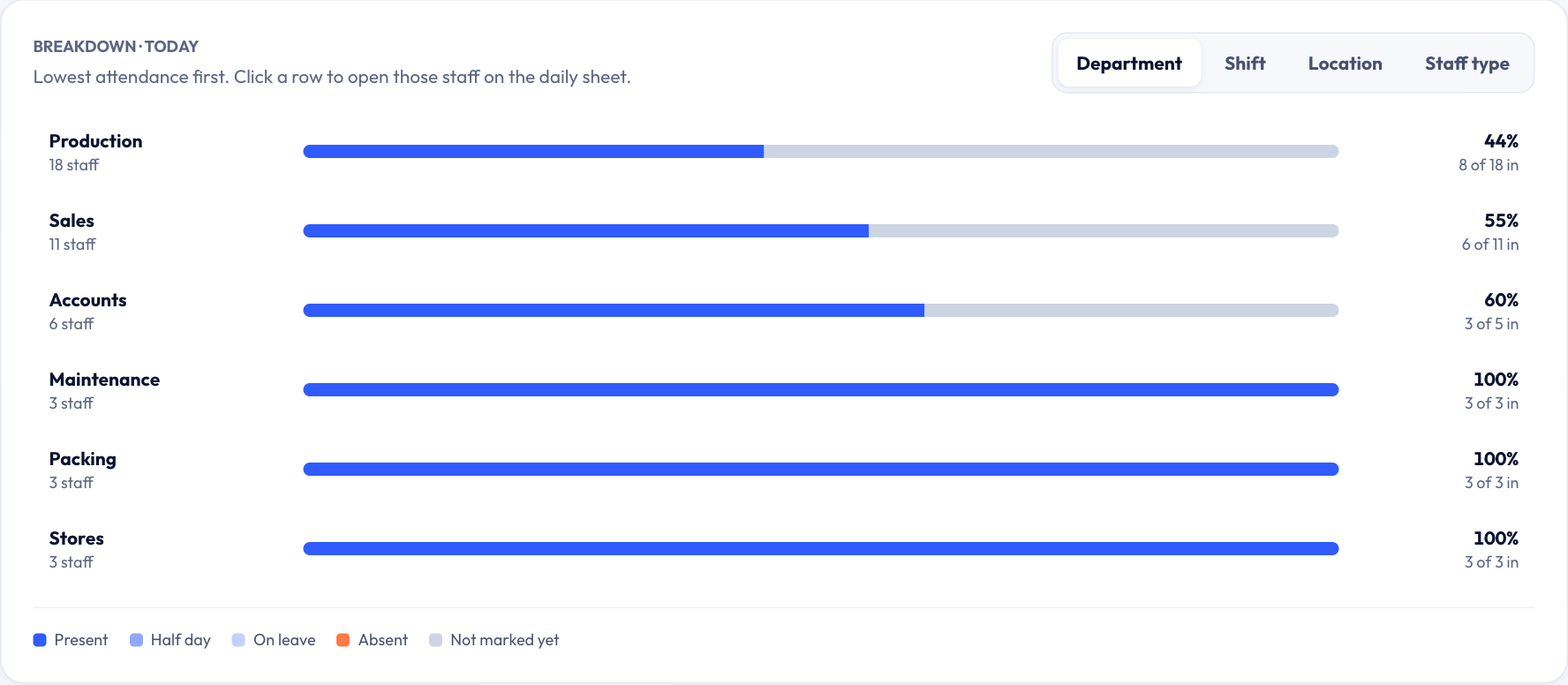
These cards show where attendance is low today, so you know which team to call.
| Card | What it shows |
|---|---|
| Breakdown | Attendance by department, shift, location or staff type (switch with the tabs), lowest first. Click a row to open those staff on the daily sheet. |
| Attendance by department | A table per department: present, late, on leave, absent and not marked. |
| Shifts today | Each shift with its timing, how many are in, and who hasn't come in yet. |
| Department × shift | A grid that shows, for example, how the night shift in Production is doing. |
Choose your cards
Press Edit dashboard in the top-right corner. A menu lists every card with an on/off switch. Changes save straight away — there's no Save button.
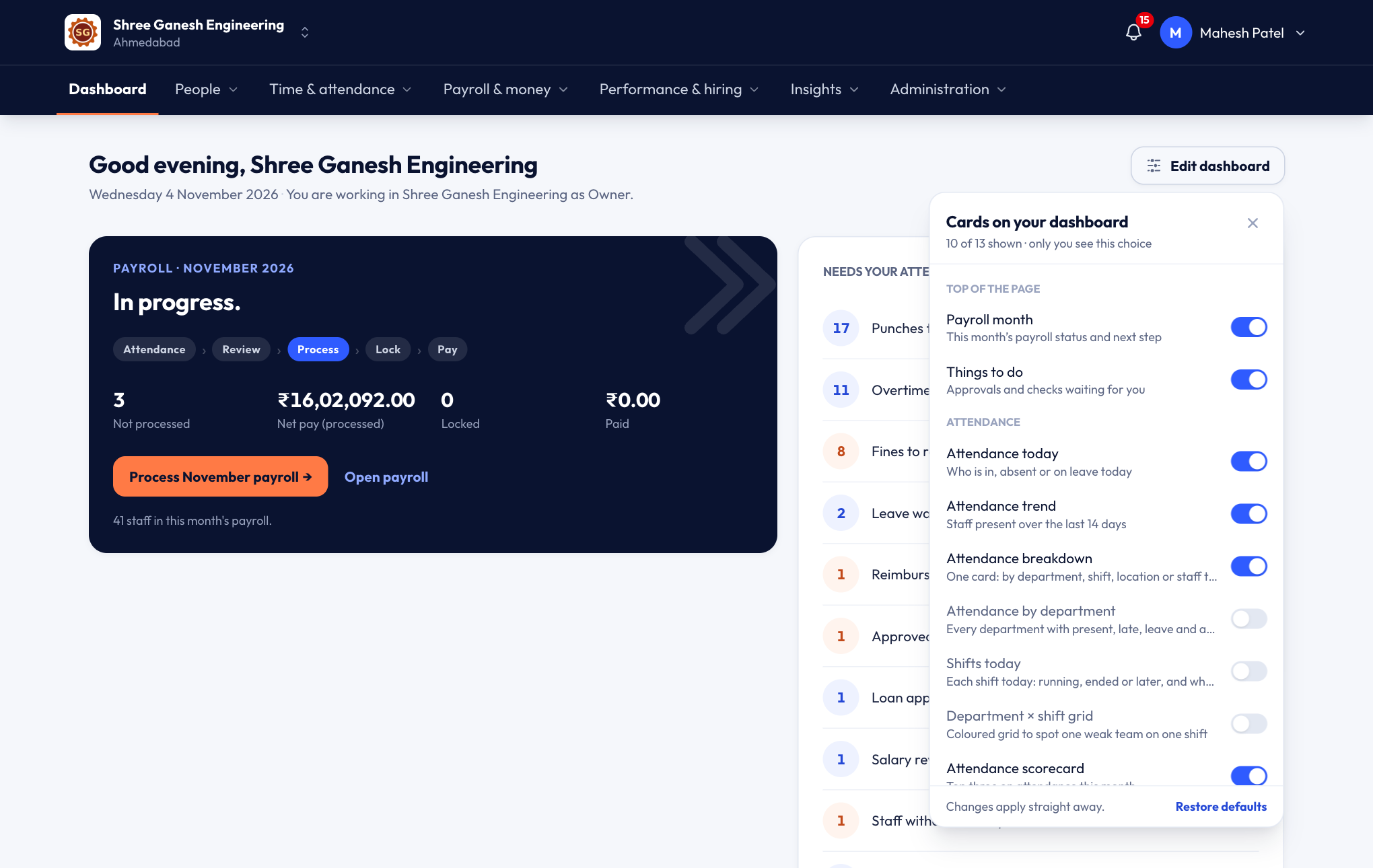
The Breakdown card is on when you start. The department table, shifts today and department × shift grid are off — switch them on if you use shifts or have several departments.